
In-System Design
A practical guide for designers: why my design system starts in code, and how I build, check and maintain the Figma library.

In-System Design: a three-part series.
Part 1: Building an AI-ready design system: Code → Figma (you are here)
Part 2: AI prototyping inside your design system (3 November 2026)
Part 3: From code to Figma and back (10 November 2026)
For designers who know Figma well and have never written production code, and for the design system teams around them. Every technical word is explained in the box at the end.
For most of my career, the work went one way. I designed in Figma, a developer turned it into code, and when something did not survive the trip, we sorted it out between us.
Then I handed that same route to an AI, and what came back was unsettling, mainly because it looked fine. It read my Figma file, translated it faithfully, and filled in everything the file did not say with whatever seemed plausible.
The code that comes out is mediocre, and that is the part everyone frets about. Fair enough, since code quality is at least the part you can read, review and complain about in a pull request.
What worries me more is what gets invented: the focus order, the error states, what a screen reader announces, what happens when a request fails, or when a list comes back empty. None of that shows up in a screenshot, so nobody catches it in review.
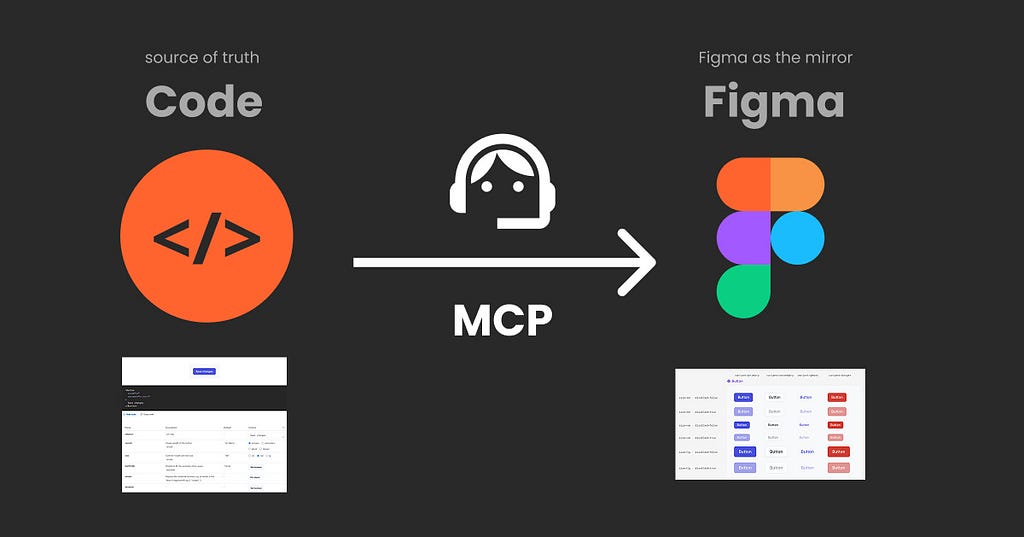
So I turned the direction around. My design system now starts in code, and I generate my Figma library from it. Code always wins, and Figma is a mirror, not a second truth.
That sounds like a demotion for Figma, and in practice my Figma file got busier. This article is why, how I build the library, and how I keep an existing one honest, including the parts that still need babysitting.
Why doesn’t Figma-to-code with AI work well?
Because your Figma file was always supposed to be an abstraction. Let me explain: I sat down one afternoon and compared what a React component can express with what a Figma component can express, because that is the kind of thing I do for fun now, apparently. The life and soul of the party, I am. My count came out at roughly 17% coverage. For CSS, it was better, around 45%, and still nowhere near complete.

Those are my own numbers from my own comparison, not an official statistic. Check them against your own stack before quoting them in a meeting.
Everything Figma cannot say used to be filled in by a developer who could walk over and ask a question.
That gap is not a Figma failure, and no, I do not want Figma to close it. If focus order, container behaviour and ARIA labels lived in the file, you would need to be a front-end developer to use your own library.
A developer also notices what is missing. An AI does not. It takes the file literally, as a complete instruction, fills the gaps with whatever it has seen most often, and carries on, so the old direction now produces a component that looks finished and is partly invented.
Turn the arrow around and the same literal-mindedness becomes a gift. Generating from code, “it reads exactly what is there” is precisely what you want, because what is there is the real thing: real props, real values, real defaults, real states.
Flip it: Code as the source of truth, Figma follows
Code is the source of truth. Figma mirrors it. Where they differ, Figma is wrong.
I know how that lands in a room full of designers. Designers still do not work in code, and I have no plans to write production code myself. Figma does not matter less either. I think best on a canvas; I design there, and I would fight anyone who tried to take it away, so hear me out.
Hands-on: from a repo to a Figma library, step by step:
This is the workflow I currently use and demo, with the prompts I actually use. You don’t need to be a developer for this. You do need to be comfortable opening a repo and reading what’s in it, and the AI will walk you through the rest. So yes, some new territory, but stay with me! It’s great fun!
What you need:
1. A design system in code you can access, with Storybook running on it
2. An empty Figma file
3. MCP connection. I use and recommend Figma Console MCP by Southleft for this because it reads and writes variables properly, which the basic connection does not.
1. Get access to the code as a designer
A branch, a sandbox, or a playground repo. Ask development for the smallest safe thing: a copy where nothing you do can reach production.
If you want to practise first, download any sample design system as a zip and point your AI at the folder. I hand out a sample file for trainings and sessions, but you can also make your own. Connect that folder or branch with your AI. I will use Claude Code for my example. Your developers will most likely use the terminal or an editor; I use the Claude desktop app and the Claude Code tab.
2. Check that Storybook is there
Once you are connected, ask Claude Code to open Storybook for you.
What you get is a local website: it runs on your own machine, at an address like localhost:6001. Only you can see it, nothing is published, and it is built from the code sitting in front of you. It shows every component, live and clickable.

Storybook does not keep its own copy of your system; it lives inside it. Next to each component sits a small stories file listing its examples, so the page you click through is built from the real code and you can see, understand and compare it as a designer. That is also the key to prototyping with AI and generating sensible output, and I will come back to it in another article.
It is so great to finally go through the real stuff visually as a designer; I cannot believe I didn’t use this earlier! You can look at the Storybook of one of my samples here.
No Storybook? You can still do everything in this article. What you lose is the view and the component list, which I personally need to understand and compare, and for some parity checks later on.
If you are in a playground environment, you can just ask Claude to add it to your own copy and play there. In a real repo, it is a developer’s call, because it brings dependencies somebody has to maintain, so ask rather than install. It also needs to be Storybook 10 or newer, with the components manifest switched on, before an agent can read that list (this is for parity checks and prototyping later).
3. Open an empty Figma file
Clean, empty, and destined to become the library. Not your existing library, which comes later. Then open the Console MCP inside it.

From here, Claude Code is the hub between the two: one arm in the real code, one in the open Figma file. I can ask in plain words for something to be read on one side and built on the other.
4. Tokens and styles first, always
Components use tokens, so the tokens and text styles have to exist before the components do.
First find out where the tokens live, and yes, you can just ask Claude. In my repo they are JSON: one layer of raw values, one of semantic roles. In yours they might be CSS custom properties, or a Tailwind config, in which case I am sorry. Figma then splits them into two: colours, spacing and radii become variables, typography becomes text styles bound to variables. Console MCP does this well; you still have to check it, and you still need to know your way around Figma properly.

My prompt for this step, roughly as I say it:
I want an exact mirror of this repo in Figma. The MCP is on and the file is empty. Let’s do this step by step. Transfer the tokens first. Always use the same naming as the code, so Figma and the code match. Set up collections that match the code, primitives and semantic. Alias them. Scope them. Where needed use modes (e.g. light and dark mode). Do the same for the text styles, using the naming from code, and use variables as in the code. Anything you cannot express, write into GAPS.md always. Then stop and tell me if you need anything.
You will need to adapt this to your setup; mine is React with tokens in JSON, two layers. Once done, check in Figma that everything is set up correctly and compare with Storybook (I ask it to display all of this on a page for me).
5. Build two components as a test
Not the whole system. Two, ideally one simple and one awkward. I use Button and Alert, or some sort of dropdown; it’s fun with Figma.
Now build the Alert and the Button component as a test, set up as in code, using my variables and styles. Anything you cannot express, write into GAPS.md always (GAPS.md I explain below; it’s the best part!).

Then I go and look properly: are the variants complete, are the properties named as in code, is auto layout set up, are the tokens bound and scoped, did it carry the description across.

That last part is where the real value sits. The two sides do not only look alike, they carry the same names and the same properties, down to the spelling. No danger on one side and error on the other, no Card that is secretly a Panel. Everything that comes later in an AI workflow stands on that: prototyping with real components, checking for drift, sending a screen back to code.
If the two come out right, I run the whole library. And yes, that costs time and tokens. However, only once. Staying in sync afterwards is a different job: a contract, or in my case a parity check comparing two JSON lists. More on that soon.
6. Know what you need! Context travels with each element, like a little parcel
You might have heard that context is key when working with AI design systems, especially later as we want to prototype with all of this stuff. Most of what gets called context is a markdown file: a DESIGN.md, a rules file, a page of guidelines. But most of the context is baked into the things themselves. Every token, every component, every style: think of each one as a little parcel carrying its own context.

What is in the parcel:
- the component name, identical on both sides
- each property with its allowed values and its default
- each token name, what it points at, and where it is allowed to be used at all
- the description written once in code and carried into the Figma component
- the code syntax on a Figma variable, so the variable knows what it is called in CSS
- a link back to that component’s page in Storybook
- and the gaps file, for everything that could not make the trip
None of that was typed into a document by hand, and to be honest, by hand I wouldn’t even get close. Markdown is for the why and the when, the rules and the exceptions. Everything factual gets generated and attached, and then it cannot quietly disagree with the code. Oh, how I love my MCP!
7. Ask for the gaps, every single time via GAPS.md
You might have noticed that I ask for GAPS.md every single time. I ended up with this one by accident. I wanted to know what had happened to all the things Figma could not express, so I asked the AI to list them, and the list turned out to be more useful than the components it had just built.
Write a GAPS.md: everything you could not express in Figma, everything you were unsure about, and anything I should check by hand.
The gaps exist whether or not anyone writes them down, and written down they become reviewable. My own gaps file contains things like line heights that are unitless in code and have to become pixels in Figma, states that only exist in behaviour, and layout rules Figma has no equivalent for. Each one with a note on what I decided. I also include a list of items the AI was unsure about that need my revision.

A gaps file turns the imperfect mirror into a list you can take to a developer and work through, and you might come up with more creative ideas on how to use it.
8. Turn what you learned into a skill
By the third run you will notice you are typing the same corrections. That is the moment to make a skill: a packaged set of instructions your AI loads automatically for this kind of job.

Mine creates tokens and components, writes the gaps file, expects Storybook, then screenshots each generated component and compares it against the matching Storybook story, and compares manifests (a check I use later for parity). It exists because of my own mistakes, and I update it most weeks.
One safety note, because I am asked this every time: a skill can run code on your machine. Make your own as a team or install them, but only from people you trust; read them, or have a developer look first or at least ask Claude to run through it before installing. Installing a random skill because it sounded handy is the same move as opening the “you have won a million” attachment.
Keeping code and Figma parity
Generating the library once is the easy part. Keeping it true as the code changes week after week is the open problem, in my setup and in the industry generally.
So I built myself a little parity checker and keep it as a status page inside Storybook; you can check it out here on my sync status page. You don’t need a page; you need a check, but I am a designer, so I need to see things visually.

How it works, in three steps, quite unspectacular:
- Storybook can automatically write a component list. If you are using the Storybook MCP, it generates a file (JSON) called a manifest: every component, its properties, the allowed values and the defaults, straight out of the code. I only found it because of prototyping, where that short list is what makes AI prototyping work at all, since the agent reads the list instead of your whole repo. Which, by the way, is what got me into this whole setup in the first place, as I was so frustrated with the code output of AI builders when prototyping.
- So I asked Figma for the same thing. With the MCP open, I had Claude write me a matching list of what is really in my library: same components, same properties, same values. You can see the Figma JSON file I use here.
- Then I ran the two against each other. Name against name, property against property, default against default. Everything that matches turns green, anything that moved turns red. Easy!
Both lists are JSON, which is just a text file where every value has a label, so a machine can compare them without interpreting anything.

That comparison is deterministic, and that is exactly what we want: same input, same answer, every time, with no AI in it. The AI only kicks it off in my setup. The downside of mine is that I still have to trigger it by hand, and a real team would have a more sophisticated setup that runs automatically on every change. But very few teams have that right now.
However, building it taught me more than reading about it ever did. I now have a much better idea of what my developers mean when they talk about checks, and I can sit in that conversation and help shape the workflow with design needs in mind.
Side note: Right now it only checks the architecture, the names, properties, allowed values, and defaults. Not the visual side, no CSS. I am working on that.
Another side note: I initially called this a contract, but it isn’t. A contract sits above both sides and both get built from it. Mine compares two sides, and code wins every time, so the honest name is a parity check.
“But I already have a Figma library. Can I update it with MCP? ”
Most teams have one, often with years of work in it. The same connection can compare instead of create.
I take a component I know is out of step, and I ask:
In my open Figma file there is an Alert. Check it against the Alert in the code. This is a library file, so instances depend on it. Think it through with me: would a change list next to it be best, or should you generate a reference version from code next to it so I can compare, or do you want to propose a direct fix? Tell me here in the chat and add this as a visual note in Figma next to the component.
What comes back is usually a report plus a clean reference component sitting next to the old one, which is a very calm way to have an argument with your own library (and yes, I renamed my component to Pizza just to show you a fail):

The whole check runs through the MCP, and the answer is generated straight onto the canvas, next to the component it is about.
Three warnings:
- Work on a copy. Never let an agent loose in a live library that other people’s files depend on. Duplicate first, test the workflow, then decide as a team.
- Deleted variants do not come back. Every variant has a key underneath its name. Delete it and rebuild it identically, and the instances out in the wild still will not reconnect. Rename and repair, do not delete and recreate.
- It still needs babysitting. On a real system with real history, this is assisted work, not magic. Go component by component, because the AI is quick and tireless and has no idea which differences matter. Once you are done, you can put a deterministic contract or other parity check on top that just checks whether things stay synced.
I use this technique for any sort of check, e.g. accessibility
Once you are aligned, you can do so much! Here’s an example: accessibility checks run in code, and then I get a little note like the one above in my Figma file next to the area with the issue and suggested solutions to discuss. Love it!

This is what becomes possible once Figma and code hold the same tokens and structure: Contrast measured against the real tokens, then laid out in Figma through the MCP
What if your product has more than one source?
Everything above assumes one. My sample is one design system in code and Figma on top, so that code wins and there is nothing to argue about. With two it still holds: pick one as the source, mirror it into Figma, keep the names matching on the other side. At three- iOS, Android and web- it falls apart, because each of them holds part of the truth and none of them is wrong.
You will not be the one deciding how that gets solved, and it decides what your Figma file can be, so it is worth knowing which one you are living in.
A library per platform. You do exactly what this article describes, once per platform. Each library mirrors its own codebase, like three small projects side by side. The drift then is not really between Figma and code any more, it moves into the structure: there is no single Button, there are three, and they slowly grow apart. That is the kind of thing a team ends up talking about as a whole, and it is good to see it coming.
Shared tokens, separate components. The one I see most often. Colours and spacing come from one source and land everywhere, while each platform keeps its own components, which is correct rather than sloppy, since a sheet is not a modal. You can mirror that split in Figma: one library for the variables and text styles, shared by everyone, and a component library per platform on top of it. The tokens are then safe to rely on, the component names are not.
One platform as the reference. Usually web. Then it is this article again, one mirrored library, and the others follow its names as far as they can. Worth knowing which platform that is, and if nobody can tell you, that is your answer.
Components defined as data. The one I find most promising comes from Nathan Curtis, whose talk about this idea I saw at SmashingConf Amsterdam in 2026 and really resonated with me. Instead of the definition living inside one codebase, every component is written down as data: its options, its allowed values, its defaults, in a plain file that sits above all the platforms. He calls it a contract (I wrote a longer article about contracts), and a schema says what a contract can contain. React, iOS, Android and Figma are all built from it and checked against it, so none of them is the original, and your Figma file stops being downstream of somebody else’s codebase.
Worth exploring, and not only for this. If you follow me a bit longer you will see JSON files and deterministic checks turning up everywhere, including in prototyping, which is where this way of thinking really pays off. So if you are working at that size, have a look at Curtis’s Spectacular (not a paid placement, as usual, just an honest recommendation), a Figma plugin and a command-line tool that read a component into schema-valid YAML or Markdown and render specs back into Figma.
The question to take back to your team is not which tool. It is which of these four you already are, and who is keeping it true.
What this does not solve
- It needs a system worth mirroring. If the code is a mess, you get a beautifully generated mess. And the clean codebase you can happily generate from is rarer than any of us pretend. Mine behaves because it is a sample system I built myself. Real ones have two generations of components living side by side, props called type1, half the things undocumented, and a Storybook somebody set up in 2024 and stopped feeding. The honest version is that you do not need the whole system to be clean, only the component you are mirroring today, which is why I keep going one component at a time. And the first generated run is quite good at showing you exactly where the mess is. But yes it is work, a lot of work to get AI-ready.
- Staying in sync is the open problem, and it’s tricky. My check tells me when the two have drifted; it does not stop them drifting, and I still trigger it by hand and in a playground. The state of the rest: Figma’s Code Connect links a component to its code but does not check whether they still agree, and it is on the larger plans only. Design system teams with engineers are building their own comparisons, which is the most common serious answer at the moment. Contracts are the most interesting direction and still early, closer to a proof of concept than something you install. And Figma’s own Code Sources (which they demoed at Config India in October 2026), which would point to the real system, is very promising, but still in closed beta. So if you feel behind on this, you are not. Almost nobody is doing it properly yet.
- It only checks the structure. Names, properties, values, defaults. Not the visual side, no CSS. I am currently playing with this step; I will keep you updated. Contracts do not solve this either as far as I understand it: they can say which token a part must use, which catches most drift, and they cannot tell you whether the thing looks right when it renders. That is visual regression testing, a separate tool on the code side, and between Figma and code it is still me looking at two screenshots (the MCP compares them for me). There’s interesting work happening, but if I missed anything, let me know.
- Library updates are hidden in Figma. This one caught me out properly. The library can be perfectly in sync and every designer still has to accept the update inside their own working file, and Figma buries that away in a corner. So half a team can be designing with last month’s Button, and nobody notices even though your setup is as polished as it gets.
- It needs someone who can read both sides. Not write code. Read it, enough to notice when a translation went wrong. Still worth more right now than learning another tool.
Above all, this is also a human factor. All of this needs a change in workflow and mindset, on both sides. Designers have to read a codebase and to ask for access in the first place, which is the harder part. Developers have to prepare the system so it can be read, with typed props, descriptions and a clean manifest, and then be open about sharing it and inviting design in, which is the bigger ask. Nobody changes job, and reading code is worth more to a designer right now than another tool.
📖 Words in this article.
In-System Design (my term): designing with the system’s real components, on whichever surface suits the question, instead of next to the system in a tool that rebuilds it.
Props: the options a component accepts in code, like variant or size. Figma calls them component properties.
Token: a named design decision, likebackground-accent, instead of a raw colour value. Primitives are the raw values, semantic tokens give them meaning, and aliased means the semantic one points at the primitive.
Scoped (Figma): a variable is only offered where it belongs, so a text colour cannot be applied to a background.
Storybook: a website that shows every component of a codebase, live and clickable. It lives inside the codebase rather than keeping its own copy.
Story: one example of a component, written next to it in the code. The examples you click through in Storybook.
Manifest: the component as a list. Every prop, value and default, written once, generated from the code. Storybook can produce one, from version 10 with the components manifest switched on.
JSON: a plain text file where every value has a label, so a machine can read it without interpreting anything.
MCP (Model Context Protocol): a standard plug that lets an AI connect to a tool like Figma or Storybook and read from it or act in it. Figma Console MCP (by Southleft) is the one I use for variables and library work.
GAPS.md (my term): a file where the AI writes down everything it could not express, was unsure about, or faked.
Skill: a packaged set of instructions an AI loads automatically for a recurring job. Powerful, and worth vetting before you install one.
Deterministic check: a comparison with no AI in it. Same input, same answer, every time.
Parity check (what mine is): a deterministic comparison of two lists, code and Figma, where code wins.
Drift: when the design and the code slowly stop matching, one small difference at a time.
Component contract (Nathan Curtis and others): a component’s definition held as data, above any one platform, that code and Figma are both built from and checked against.
Schema: the model that says what a contract is allowed to express.
Code Connect (Figma): links a Figma component to its code so developers see the right snippet. It links, it does not check, and it is on the larger plans.
Visual regression testing: screenshots of the real rendered components, compared automatically on every change, so anything that shifts shows up as a difference.
Variant key (Figma): the invisible id under a variant’s name. Delete the variant and the key goes with it, which is why rebuilt variants do not reconnect to instances.
In-System Design: a three-part series.
- Part 1: Building an AI-ready design system: Code → Figma (you are here)
- Part 2: AI prototyping inside your design system (3 November 2026)
- Part 3: From code to Figma and back (10 November 2026)
About the author: Christine Vallaure
I’m Christine Vallaure. I design, I teach, and I spend an unreasonable amount of my time on articles like this one. Through moonlearning.io I teach Figma, design systems and AI workflows to designers and teams. Along the way I speak at conferences like Figma Config and Smashing Conference, mostly about where design meets code, and I am a member of the Awwwards jury.
Currently, I offer these formats in these formats:
- Build Scalable UI in Figma & AI: Design Systems Agents Can Actually Use · four-week, full Figma from the ground up, design system basics, and AI topics like these on top.
- AI Design Systems & Prototyping for Designers · a two-week intensive that runs through exactly this workflow and the prototyping that follows it, for designers who already know their way around Figma and basic design system principles.
- In-house team training · my favourite part. Get in touch if that sounds useful.
Please note: the on-demand video library on moonlearning.io does not cover these topics. I currently teach them only in live cohorts and in-house team training (October 2026).
I write these articles with an AI assistant, from my own notes, recordings and repositories. The thinking, the examples and the opinions are mine, and so is the final wording and tone.
Sign up for the newsletter to keep up.
Constitutionally incapable of writing a short article.
Building an AI-ready design system library: Code → Figma with MCP. was originally published in UX Collective on Medium, where people are continuing the conversation by highlighting and responding to this story.